How to Create Prompts
Reusable prompts are templates for recurring tasks. Instead of starting from scratch each time, you can trigger complex workflows, automate routine queries, and maintain consistent output — all while saving time and reducing errors.
note
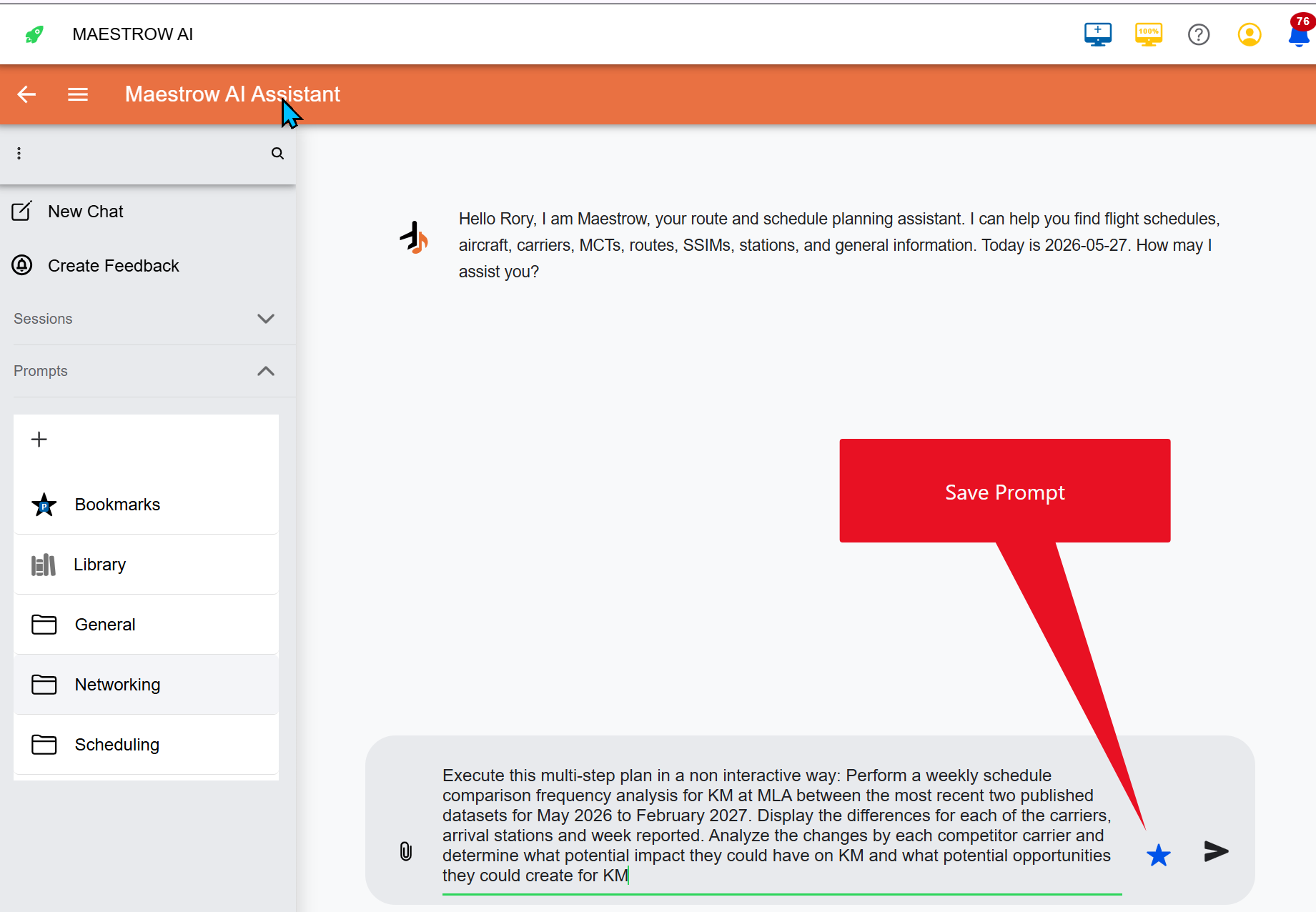
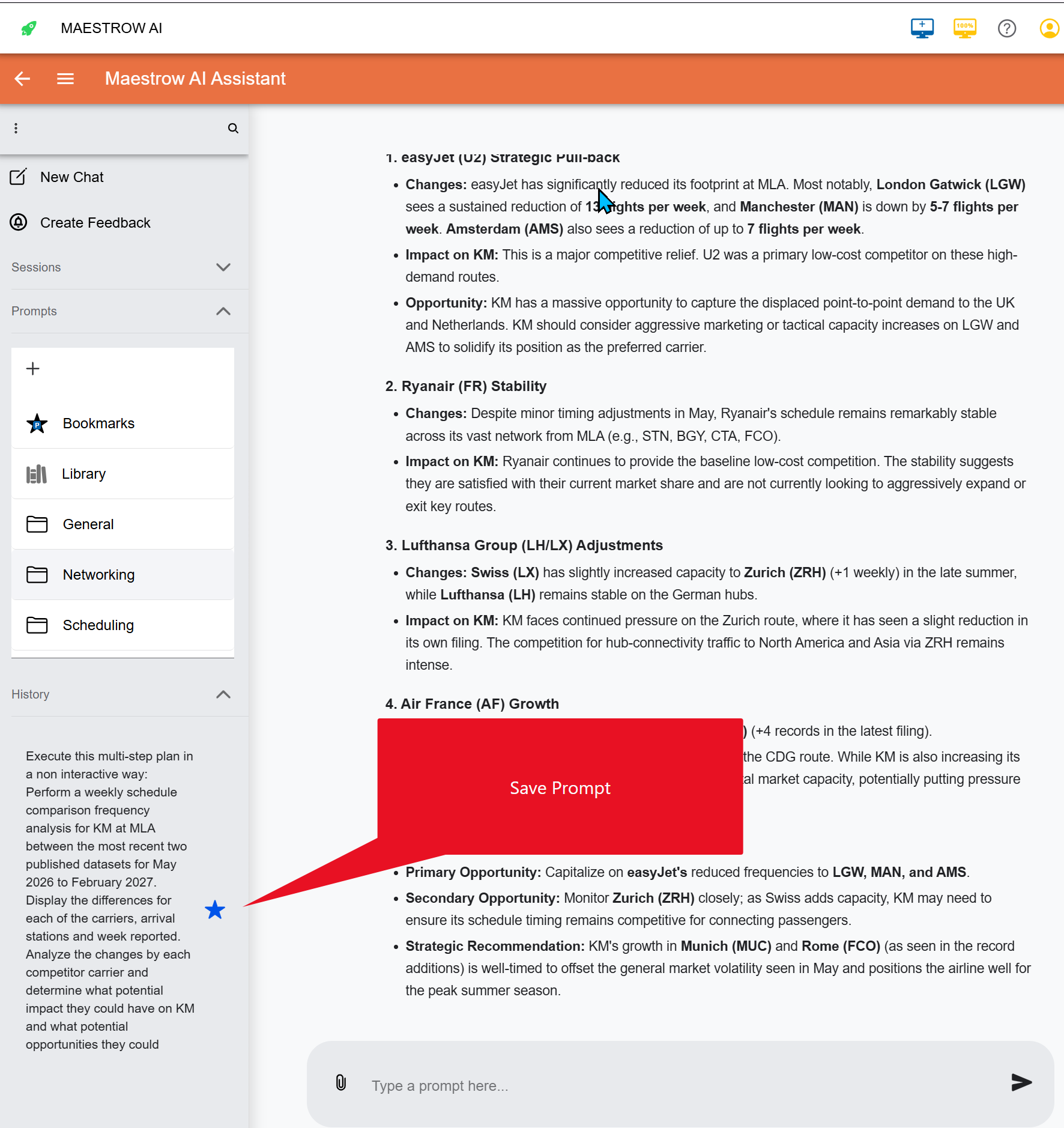
There are two ways to save a prompt. From your prompt box before executing the prompt, or from your history
Saving a Prompt
- Once your prompt is ready, click the Star icon in the dialog box to open the Bookmark menu.
- Select a category under Prompt Category to help organise and index your prompt.
- Give your prompt a clear name and add a short description so others know what it does.
- Set visibility:
- Private — Only you can view and run the prompt.
- Public — Anyone in your organization with access to the folder can use it.
- Choose a folder. If none is selected, the prompt saves to your Bookmarks Folder by default.
Sharing a Prompt
- Open the folder and swipe left on the prompt.
- Set the prompt to Public.
- Move it to a Public Folder.
- Click Update.
note
If you save a prompt to a folder owned by a colleague, they gain full control. You can run it, but not modify, update, or delete it. To regain control, save a copy to one of your own folders.
Why share prompts?
- Inspire others — A great prompt can spark creativity across your team.
- Encourage collaboration — Shared prompts lead to group discussions and joint projects.
- Preserve institutional knowledge — Prompts become living archives of your organization's expertise.