Show results as a live HTML panel in chat
Use this when you want the assistant to present information as a polished dashboard, comparison table, status board, or checklist instead of plain text.
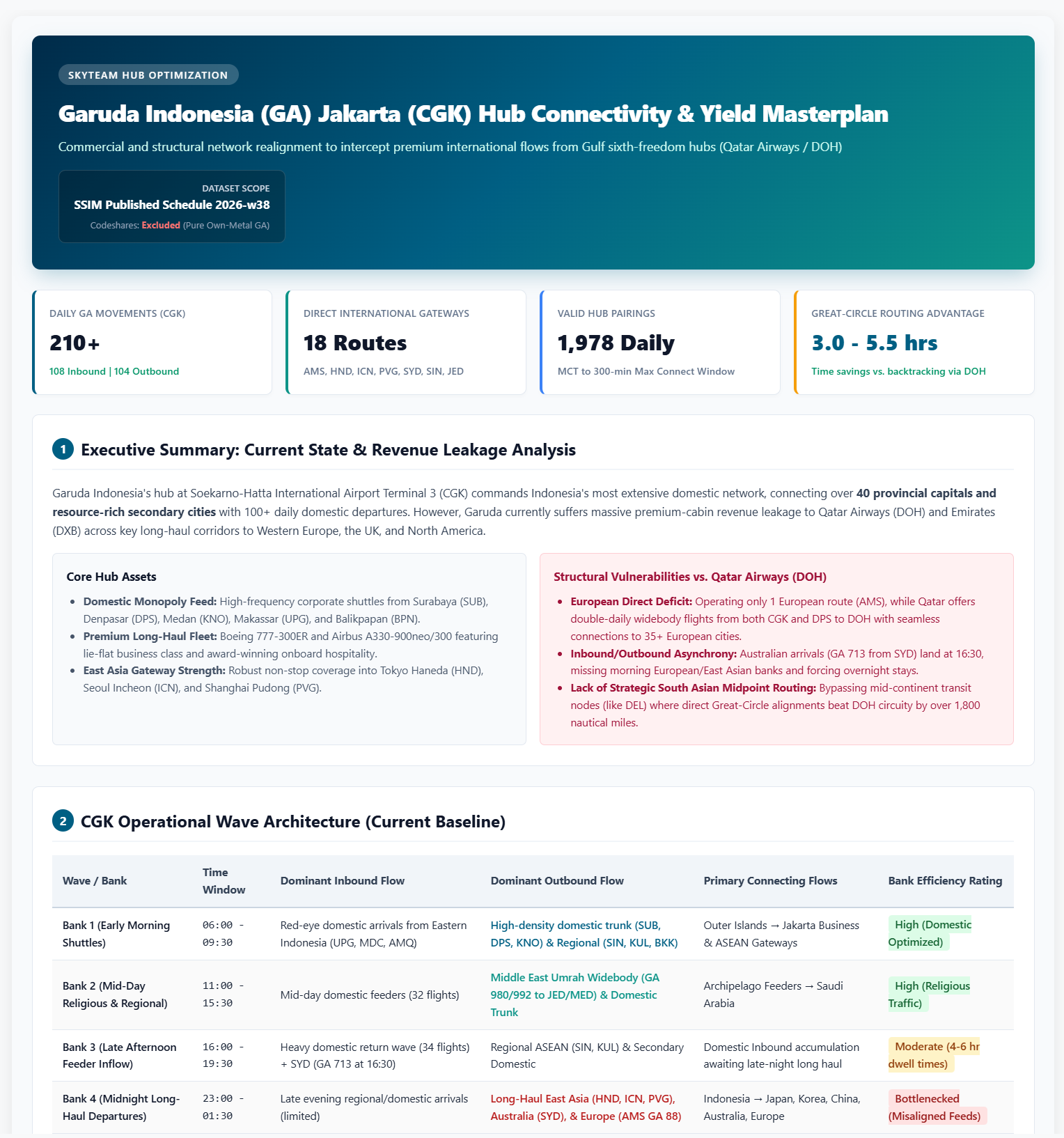
You can now create polished, presentation-ready outputs directly in chat without writing code.
This is ideal for turning raw data into clear, professional results that are easier to review and share.
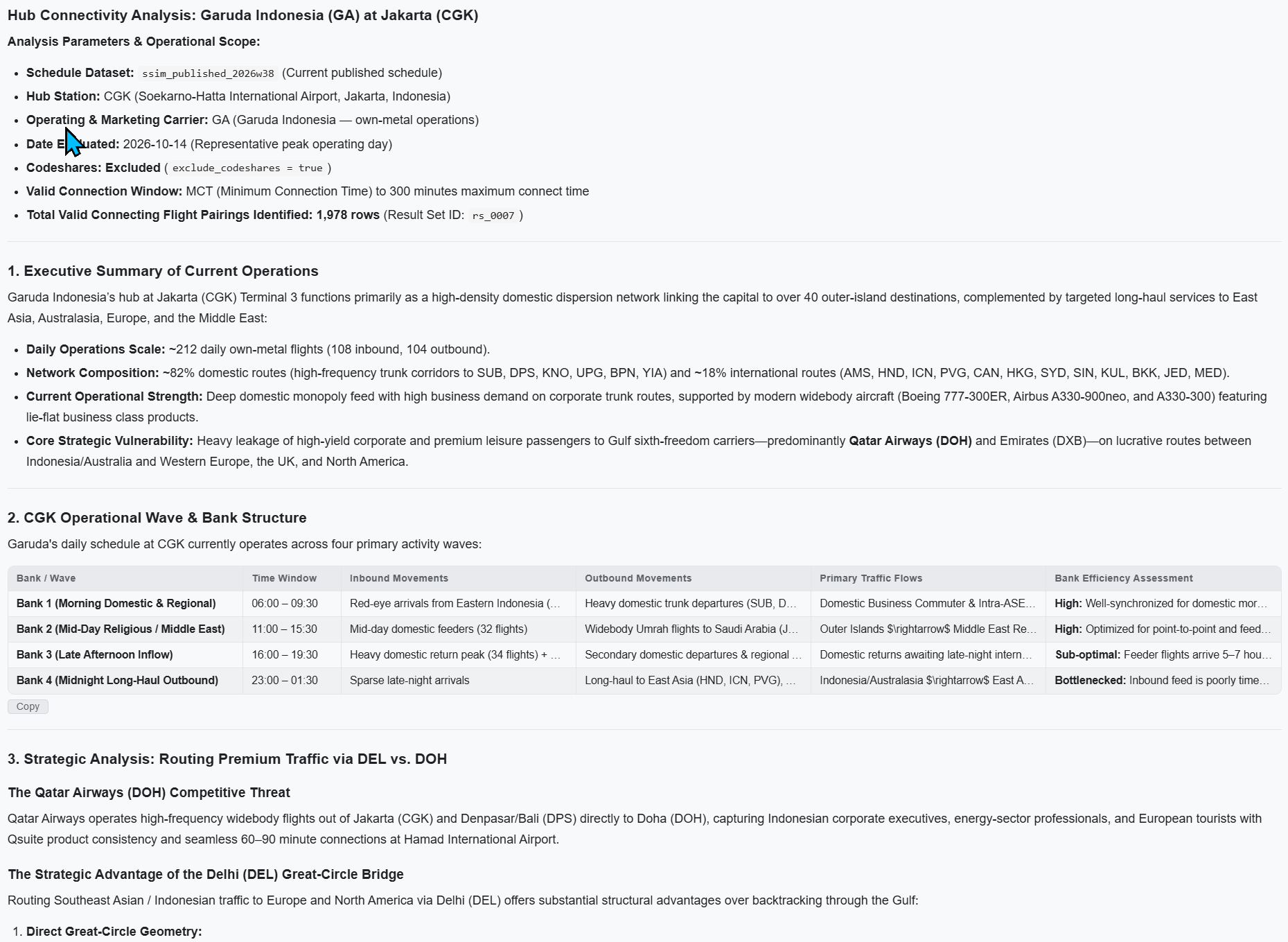
| 
|
1. The easiest way is to ask Maestrow!
Ask for an HTML fragment and describe what should be in it.
Examples to add to a Prompt or Case.
 PROMPTPROMPTPROMPT
That is usually enough. The assistant will return the content in a way that the chat can. If you instead see code text in a grey box, go to section 4.
2. What you can expect
- The result appears in the chat as a full-width, polished panel.
- Buttons, links, and clickable filters can work inside that panel.
- The panel is self-contained, so it does not automatically match the app's colours or fonts.
- It is a snapshot. It does not refresh by itself, so ask again for updated data when needed.
- You can create cleaner, more professional outputs that look presentation-ready.
This works well for:
- professional dashboards
- polished comparison tables
- executive status boards
- interactive checklists
- one-page summaries
For a quick answer, plain text or Markdown is still easier and faster, but for a more visual output this is the better option.
3. Prompt Templates
Maestrow Control
PROMPTUser Control
Copy this and replace the bracketed parts.
[Describe the data you want to pull and the fields you need.]

Create one interactive HTML fragment with:
(1) a top section with summary cards such as Total, On time, Delayed, and Cancelled;
(2) a main table with the detailed data;
(3) a bottom section with key actions or a shortlist.

Use one style block for the appearance. Use real data only. If a value is unknown, show "—" instead of guessing.
Example User Control Prompt
PROMPTHelpful wording to use
- "HTML fragment" or "interactive HTML dashboard" tells the assistant you want a rendered panel, not a Markdown table.
- "Create a polished output" helps the assistant focus on presentation and visual quality.
- "One style block" helps the panel look cleaner and more readable.
- "Each card should filter the table when clicked" makes the interaction clearer.
- "Use real data only — show — if unknown" prevents made-up numbers.
- "Presentation-ready" or "executive-style dashboard" signals a more polished, professional look.
- Keep the number of rows reasonable. Large tables can take longer to generate and may not render well.
4. If it does not render properly
I see the HTML as code instead of a rendered panel
This usually means the answer was wrapped in a code block or included extra text before the HTML.
Reply with:
Please send it again as raw HTML only, with no code fence and no text before or after it.
If it keeps happening, add this instruction to the prompt:
PROMPTThe panel looks plain or unstyled
Add a request like this:
PROMPTClicking a card does nothing
Ask explicitly:
PROMPTThe panel is cut off at the bottom
PROMPTI wanted a normal table, not a live panel
Say:
PROMPTMarkdown tables are usually easier to copy and share.
5. Quick rule of thumb
Use HTML when you want:
- a professional dashboard
- a polished summary
- interactive filters
- clickable cards or buttons
- a presentation-ready layout
Use Markdown when you want:
- a simple table
- easy copy/paste
- a cleaner answer for text-based review
If you want a screen-like output in the chat, ask for an HTML fragment. If you want a simple table, just ask for a Markdown table.
The key benefit is simple: you can now create polished, easy-to-read outputs directly in chat without needing to code.