Library Prompts
Library Prompts are useful, ready-made prompts that we have created and made available to all Maestrow clients. To use one effectively and make it your own, you first need to customize it and then save it to your Prompt Folder for future use.
Library Prompts are templates for you to customize.
Navigating to the Library Prompts
Follow these three steps to open the Library.
Step 1 — Open the menu. Click the three-dot (⋮) button at the top of the sidebar.
Step 2 — Open Prompts. Click Prompts to expand the section.
Step 3 — Open the Library. Click Library to browse the available prompts.
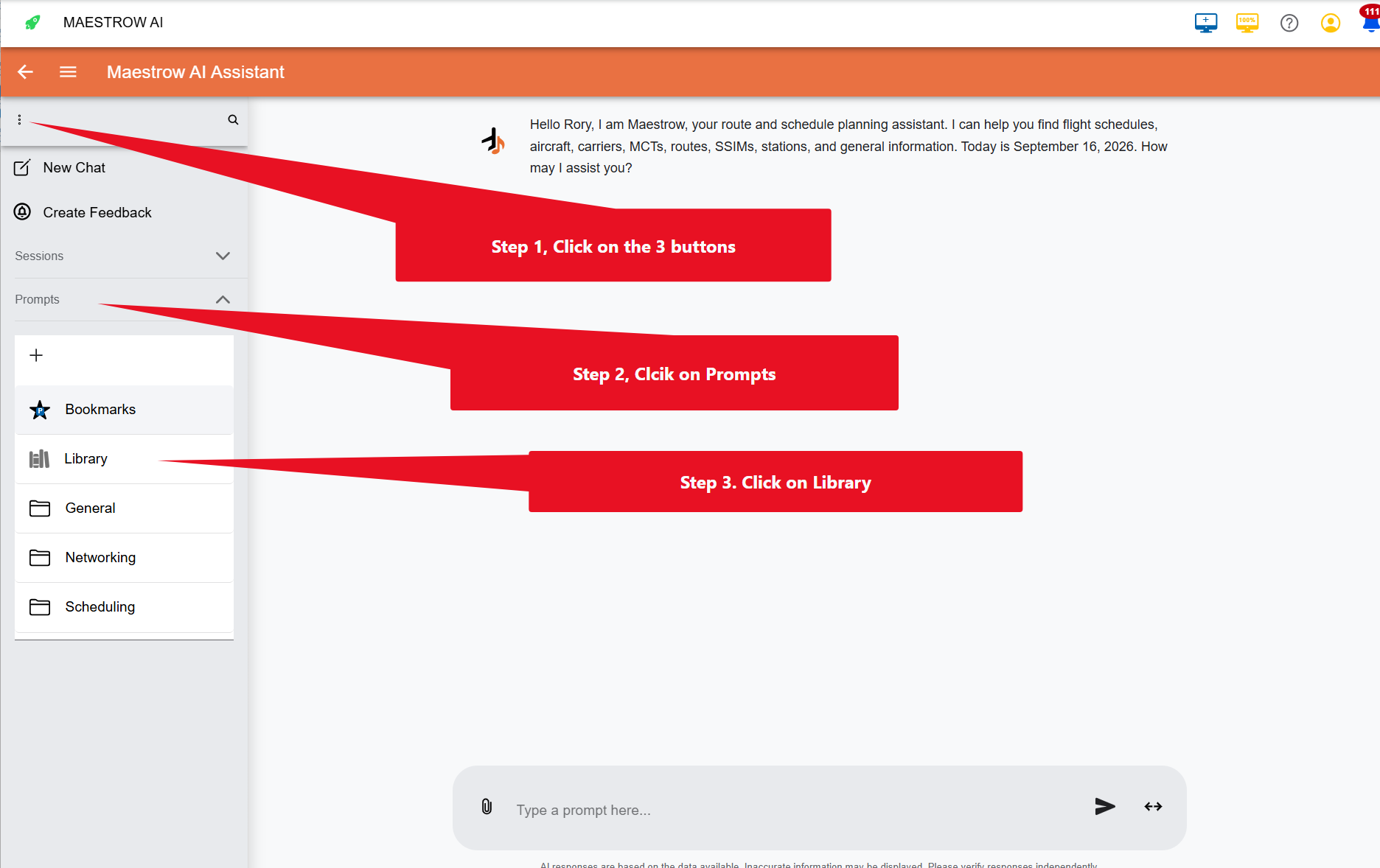
Once the Library is open, you can review each prompt before using it.
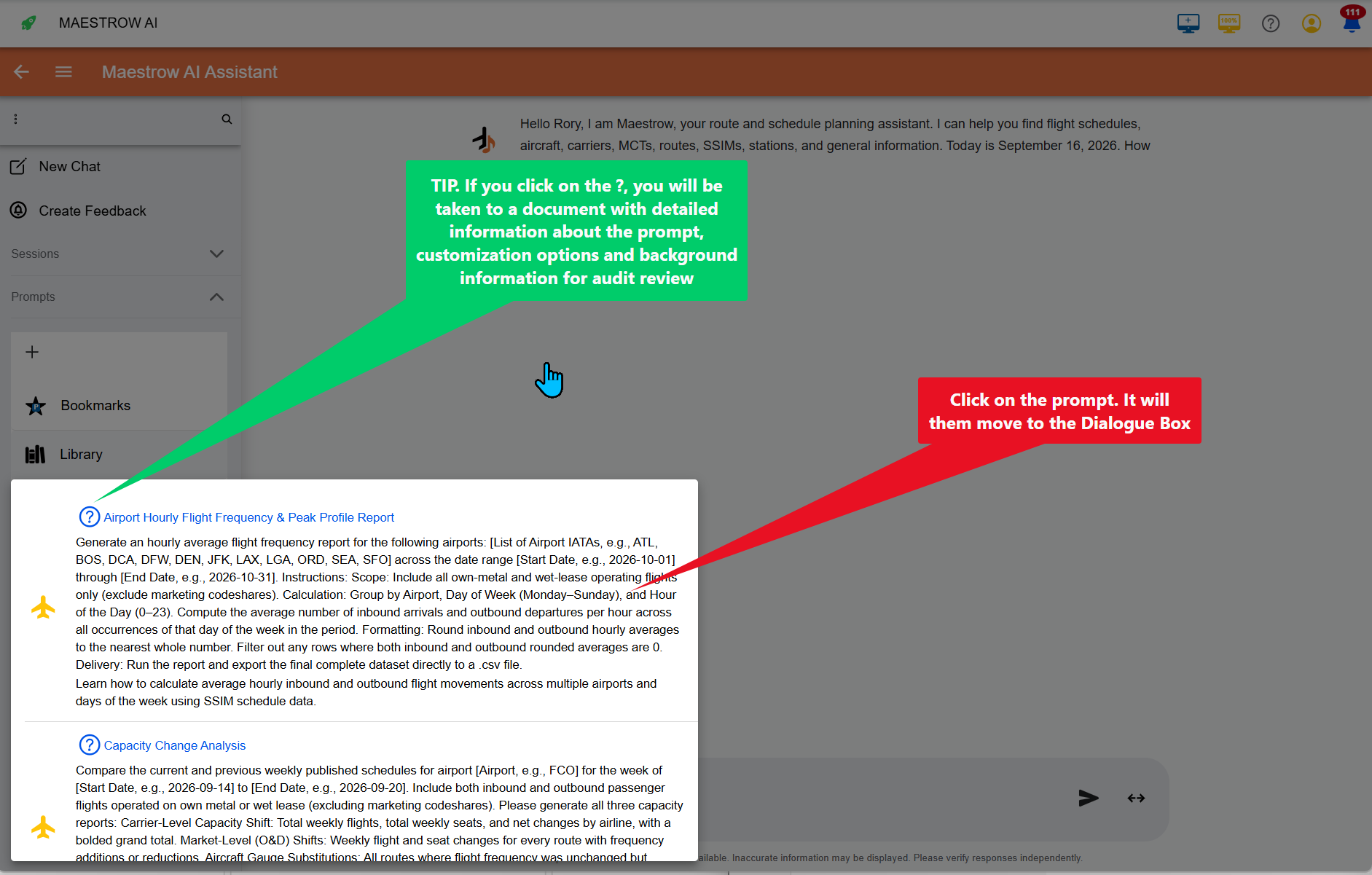
- Click the prompt text to load it into the dialog box, where you can edit it.
- Click the ? icon next to a prompt's title to open a document with detailed information about the prompt, its customization options, and background information for audit review.
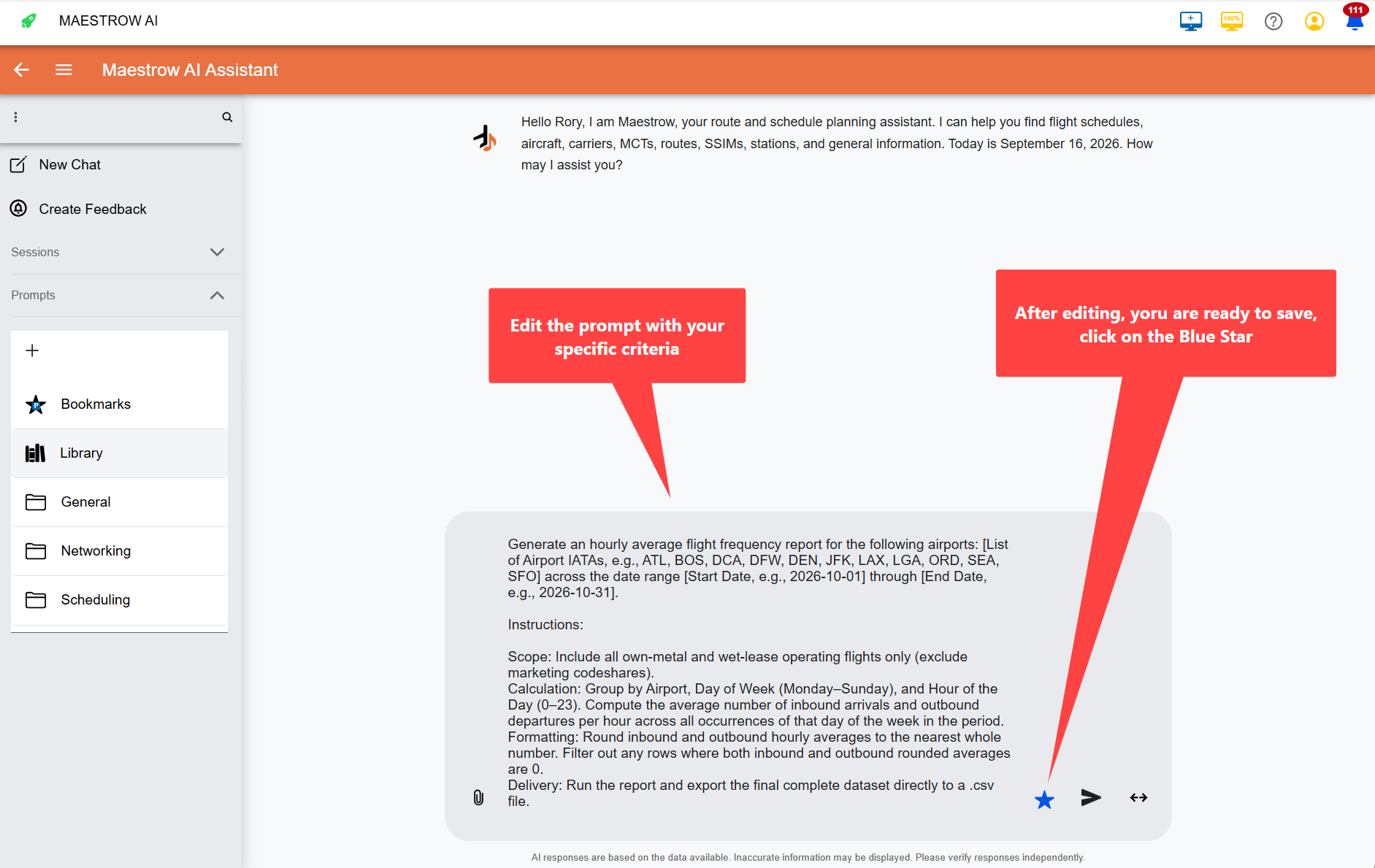
After the prompt loads into the dialog box, edit it with your specific criteria (for example, your airport list and date range). When you are happy with it, you are ready to save it.
Saving a Prompt
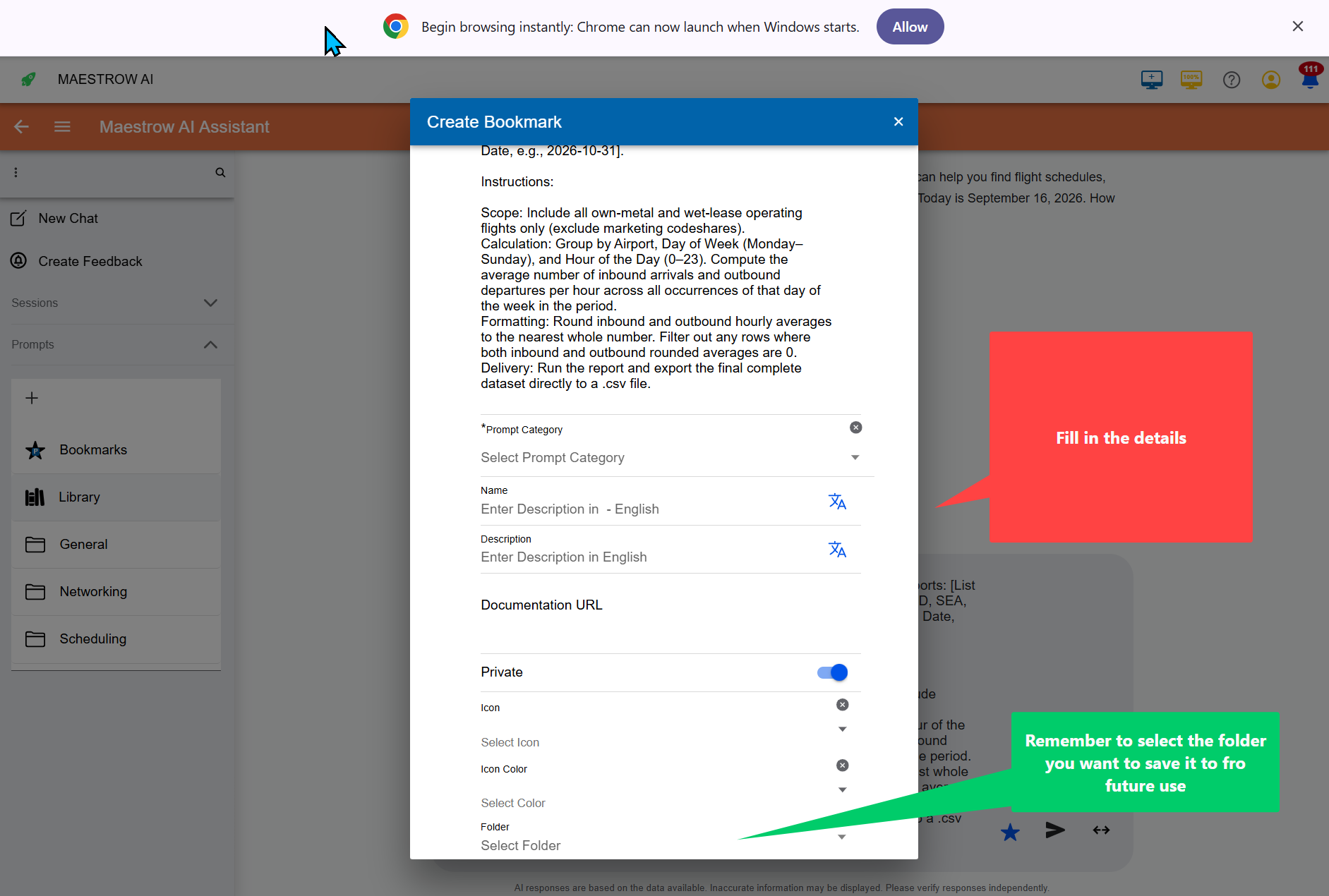
- Once your prompt is ready, click the ★ Star icon in the dialog box to open the Bookmark menu.
- Select a category under Prompt Category to help organize and index your prompt.
- Give your prompt a clear name and add a short description so others know what it does.
- Set the visibility:
- Private — Only you can view and run the prompt.
- Public — Anyone in your organization with access to the folder can use it.
- Choose a folder. If none is selected, the prompt saves to your Bookmarks Folder by default.
Remember to select the folder you want to save the prompt to, so it's easy to find for future use.
Sharing a Prompt
- Open the folder and swipe left on the prompt.
- Set the prompt to Public.
- Move it to a Public Folder.
- Click Update.
If you save a prompt to a folder owned by a colleague, they gain full control. You can run it, but not modify, update, or delete it. To regain control, save a copy to one of your own folders.
Why share prompts?
- Inspire others. A great prompt can spark creativity across your team.
- Encourage collaboration. Shared prompts lead to group discussions and joint projects.
- Preserve institutional knowledge. Prompts become living archives of your organization's expertise.